Spring Security Kerberos 示例
参考文档的这一部分介绍了示例项目。示例可以通过从 github.com/spring-projects/spring-security-kerberos 构建主发行版来手动编译。
|
如果按原样运行示例,它将无法工作,直到应用正确的配置。有关特定示例,请参阅下面的注释。 |
安全服务器 Windows 身份验证示例:适用于 Windows 环境的示例。
安全服务器端身份验证示例:使用服务器端身份验证器的示例。
安全服务器 Spnego 和表单身份验证示例:使用 Spnego 和表单进行票证验证的示例。
安全客户端 KerberosRestTemplate 示例:KerberosRestTemplate 的示例。
安全服务器 Windows 身份验证示例
此示例的目标
-
在 Windows 环境中,用户将能够使用登录 Windows 时输入的 Windows Active Directory 凭据登录应用程序。不应要求输入用户 ID/密码凭据。
-
在非 Windows 环境中,将向用户显示一个屏幕以提供 Active Directory 凭据。
server:
    port: 8080
    app:
        ad-domain: EXAMPLE.ORG
        ad-server: ldap://WIN-EKBO0EQ7TS7.example.org/
        service-principal: HTTP/[email protected]
        keytab-location: /tmp/tomcat.keytab
        ldap-search-base: dc=example,dc=org
        ldap-search-filter: "(| (userPrincipalName={0}) (sAMAccountName={0}))"
在上面您可以看到此示例的默认配置。您可以使用常规的 Spring Boot 技巧(例如使用命令行选项或自定义 application.yml 文件)覆盖这些设置。
运行服务器。
$ java -jar sec-server-win-auth-7.0.0.jar|
您可能需要通过使用 |
|
有关如何在 Windows kerberos 环境中工作的更多说明,请参阅 设置 Windows 域控制器。 |
使用域凭据登录 Windows 8.1 并访问示例
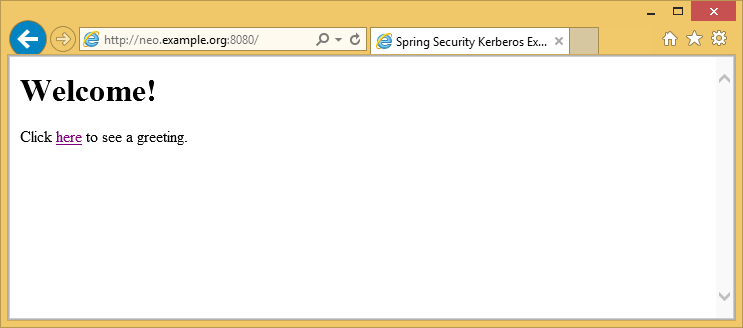
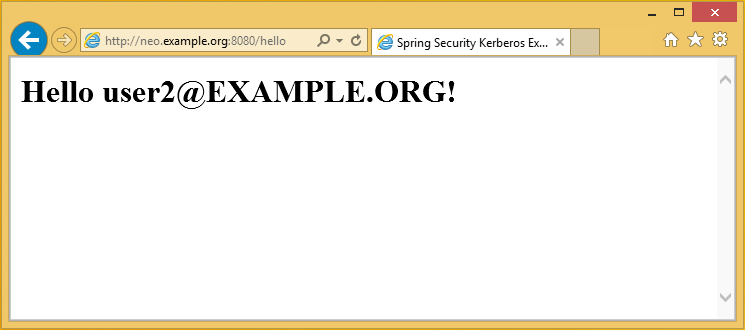
从非 Windows 虚拟机访问示例应用程序并手动使用域凭据。
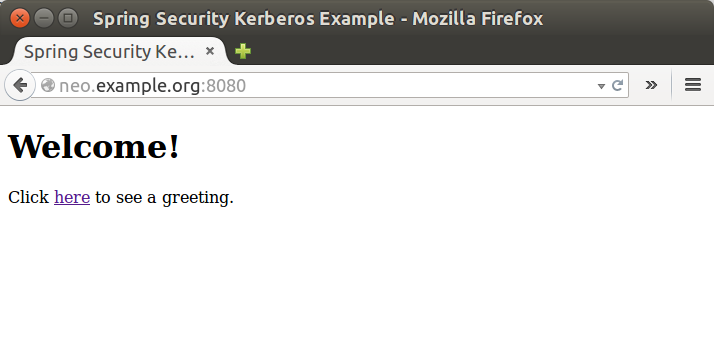
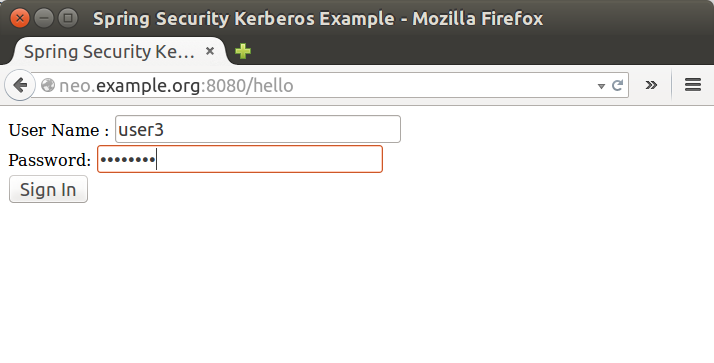
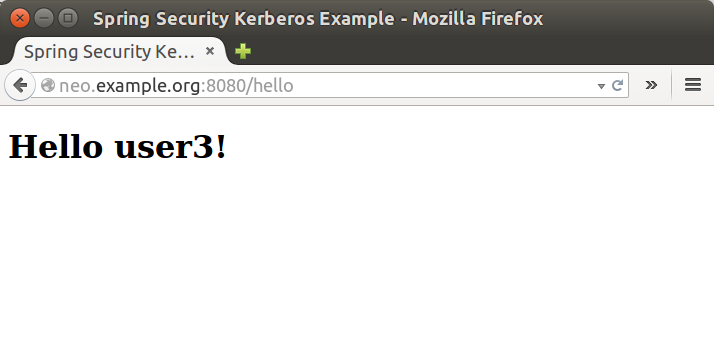
安全服务器端身份验证示例
此示例演示了服务器如何使用通过表单登录传递的凭据针对 kerberos 环境对用户进行身份验证。
运行服务器。
$ java -jar sec-server-client-auth-7.0.0.jarserver:
port: 8080安全服务器 Spnego 和表单身份验证示例
此示例演示了如何配置服务器以接受来自浏览器的基于 Spnego 的协商,同时仍然能够回退到基于表单的身份验证。
使用 user1 主体 设置 MIT Kerberos,手动使用凭据进行 kerberos 登录。
$ kinit user1
Password for [email protected]:
$ klist
Ticket cache: FILE:/tmp/krb5cc_1000
Default principal: [email protected]
Valid starting Expires Service principal
10/03/15 17:18:45 11/03/15 03:18:45 krbtgt/[email protected]
renew until 11/03/15 17:18:40或使用 keytab 文件。
$ kinit -kt user2.keytab user1
$ klist
Ticket cache: FILE:/tmp/krb5cc_1000
Default principal: [email protected]
Valid starting Expires Service principal
10/03/15 17:25:03 11/03/15 03:25:03 krbtgt/[email protected]
renew until 11/03/15 17:25:03运行服务器。
$ java -jar sec-server-spnego-form-auth-7.0.0.jar现在您应该能够打开浏览器并让它使用现有票证进行 Spnego 身份验证。
|
有关配置浏览器以使用 Spnego 的更多说明,请参阅 配置浏览器以进行 Spnego 协商。 |
server:
    port: 8080
app:
service-principal: HTTP/[email protected]
keytab-location: /tmp/tomcat.keytab安全客户端 KerberosRestTemplate 示例
这是一个使用 Spring RestTemplate 访问 Kerberos 保护资源的示例。您可以将其与 安全服务器 Spnego 和表单身份验证示例 一起使用。
默认应用程序配置如下。
app:
    user-principal: [email protected]
    keytab-location: /tmp/user2.keytab
    access-url: https://neo.example.org:8080/hello
使用 user1 主体 设置 MIT Kerberos,手动使用凭据进行 kerberos 登录。
$ java -jar sec-client-rest-template-7.0.0.jar --app.user-principal --app.keytab-location|
在上面我们简单地将 |
如果操作成功,您应该会看到以下输出,其中包含 [email protected]。
<html xmlns="https://www.w3.org/1999/xhtml"
      xmlns:sec="https://www.thymeleaf.org/thymeleaf-extras-springsecurity3">
  <head>
    <title>Spring Security Kerberos Example</title>
  </head>
  <body>
    <h1>Hello [email protected]!</h1>
  </body>
</html>
或者使用带 keytab 文件的 user2。
$ java -jar sec-client-rest-template-7.0.0.jar如果操作成功,您应该会看到以下输出,其中包含 [email protected]。
<html xmlns="https://www.w3.org/1999/xhtml"
      xmlns:sec="https://www.thymeleaf.org/thymeleaf-extras-springsecurity3">
  <head>
    <title>Spring Security Kerberos Example</title>
  </head>
  <body>
    <h1>Hello [email protected]!</h1>
  </body>
</html>
